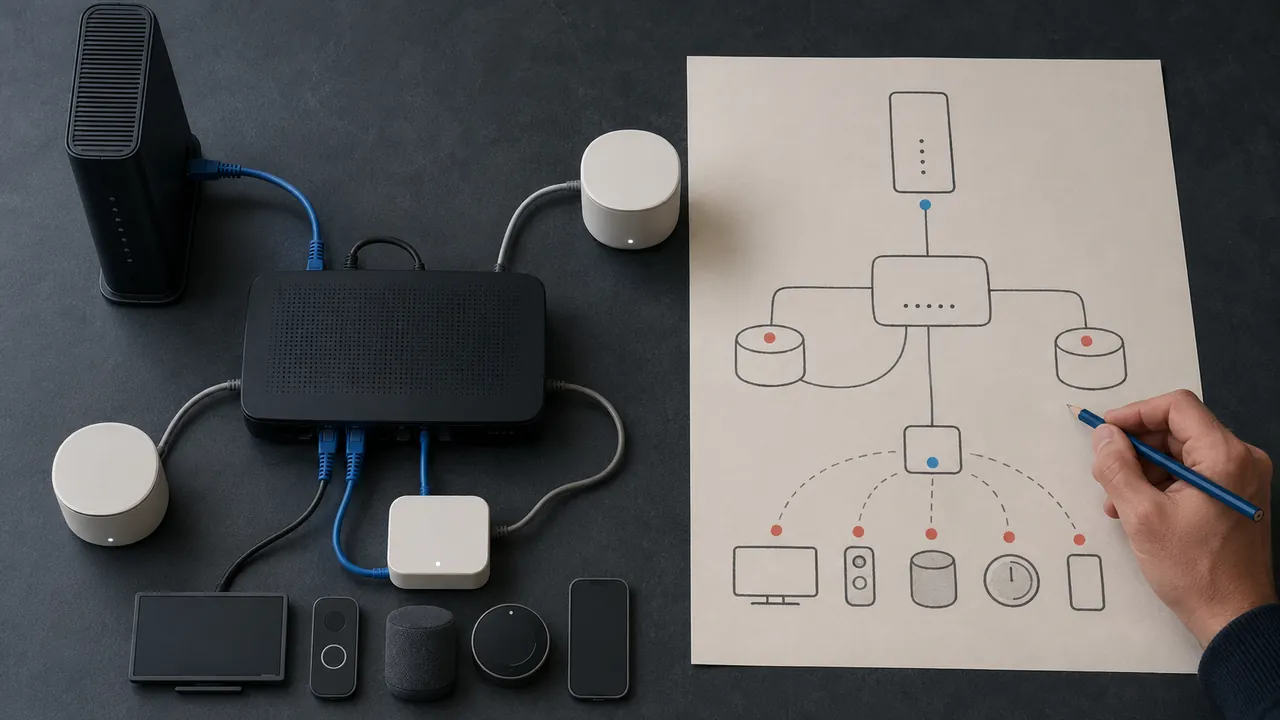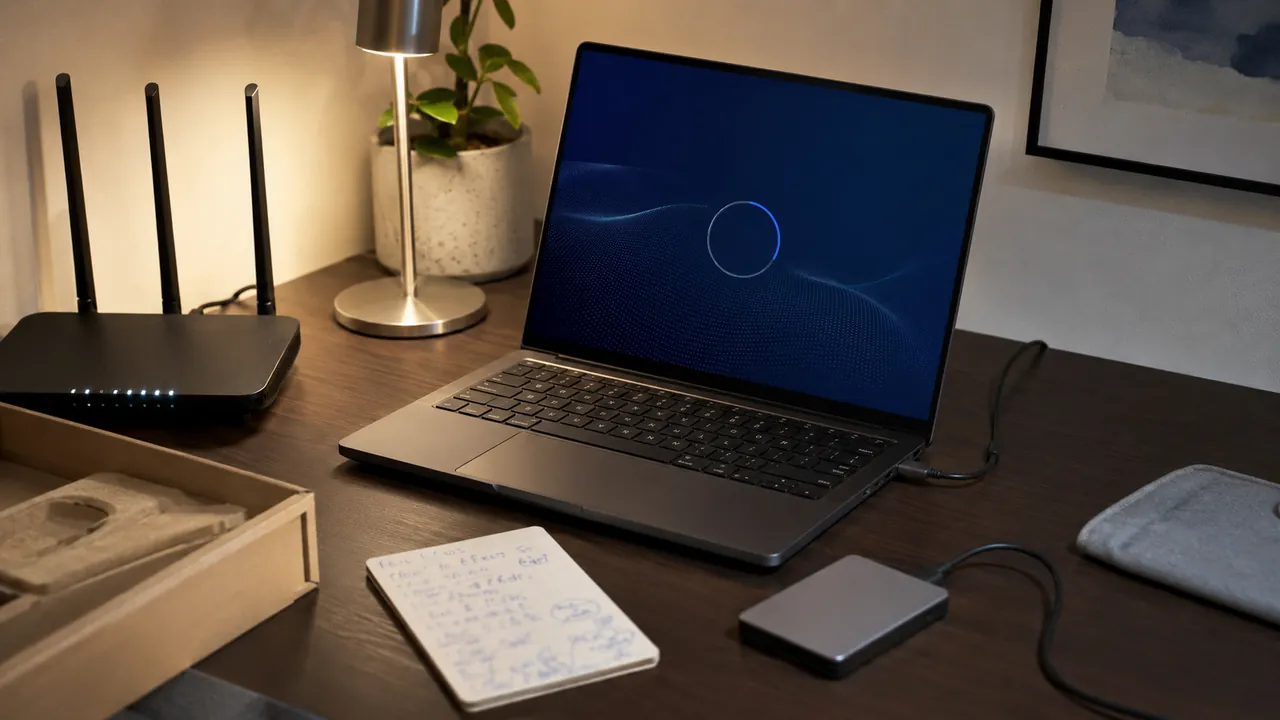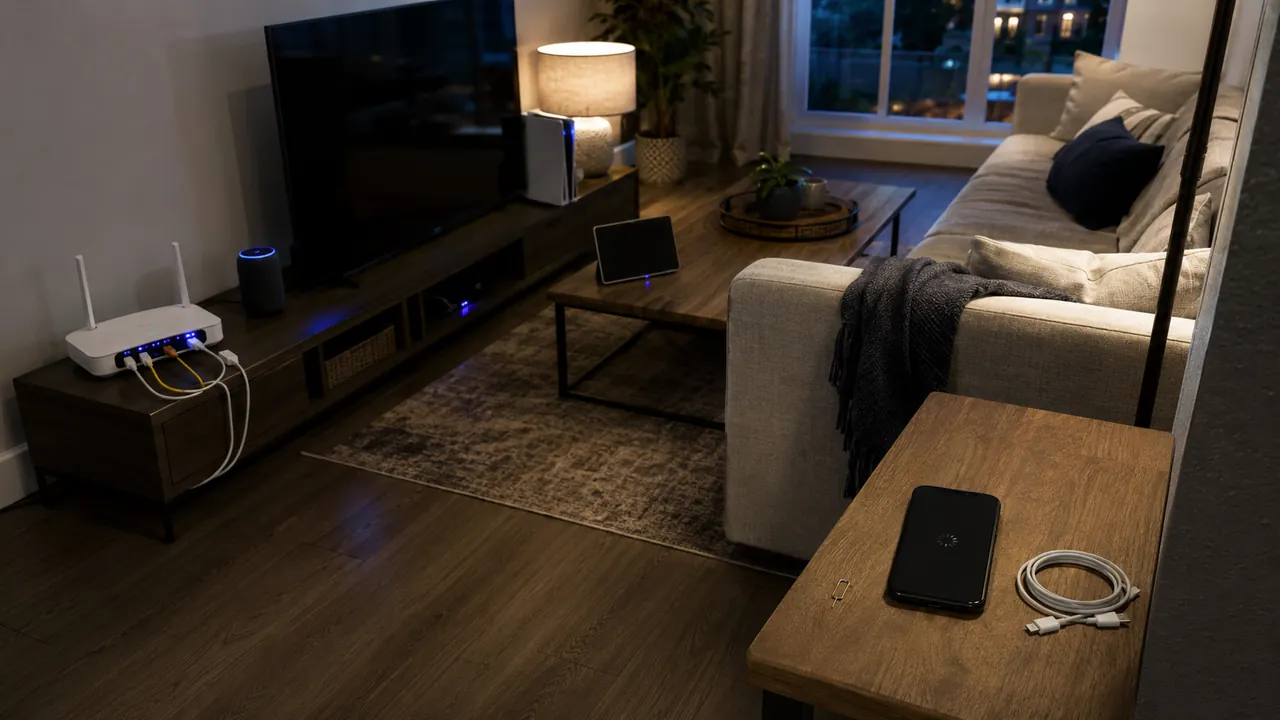
If every device except one can get online, the router is probably not the first thing to reset. The useful question is what differs on the failing device: saved credentials, address settings, VPN state, software, or hardware.
Use a device-first diagnostic order instead of rebooting the entire house at random. Prove the scope before changing anything. Test the same network on a second device and test the problem device on a different trusted network.
Record the network name and whether the failure says “connected, no internet,” rejects the password, or cannot see Wi-Fi at all. Those symptoms point to different layers.
Prove it is a one-device problem
Confirm the same network works on another device. Connect a second device to the same Wi-Fi. If it works, the modem, internet service, and router are probably functioning; leave them alone while examining the one failure.
Work from saved network to hardware
Forget the network and reconnect with the current password
Forgetting the network removes the stored password and connection profile. Rejoining tests whether an old credential or corrupted saved configuration caused the failure.
Disable and re-enable Wi-Fi before resetting anything
Toggling Wi-Fi restarts the device’s radio and requests a fresh network connection. If that fails, reboot once; repeated restarts add no new information.
Check date, VPN, private-address, and proxy settings
A VPN, manual proxy, incorrect date, or privacy-address setting can block traffic after Wi-Fi connects. Disable only the suspect setting, then test a normal HTTPS page.
Reset network settings only after recording what will be erased
Network reset removes saved networks and rebuilds adapters. Record VPN and enterprise settings first; if the adapter disappears or errors persist, update its driver from the device maker.
A device that shows strong Wi-Fi bars but cannot load a page may have joined the router without receiving usable DNS or internet settings. An address beginning 169.254 on Windows is a clue that DHCP did not supply a normal local address.
Resets that make diagnosis harder
- Do not factory-reset the router for a one-device failure.
- Do not install mystery driver utilities.
- Do not assume full signal bars prove internet access.
Escalate when the device cannot see any networks, repeatedly drops several known-good networks, or reports hardware and driver errors after an update.
When the adapter needs attention
Check current menu names, limits, and recovery language against “Fix Wi-Fi connection issues in Windows” and “If your iPhone or iPad won’t connect to a Wi-Fi network” before acting; platform behavior can change after publication, and each source should be used only for the claim it actually supports.
Microsoft’s Windows guidance starts Wi-Fi troubleshooting with connection status, network checks, and the built-in troubleshooter before more disruptive resets.
Apple recommends checking router range, Wi-Fi settings, and the network before resetting iPhone network settings.
Sources & methodology2 sources - evidence for this revision
The records below show what each source supports in this published revision.
- Fix Wi-Fi connection issues in WindowsMicrosoft Supportreference - Retrieved Jul 12, 2026
What it supportsMicrosoft’s Windows guidance starts Wi-Fi troubleshooting with connection status, network checks, and the built-in troubleshooter before more disruptive resets.
- If your iPhone or iPad won’t connect to a Wi-Fi networkApple Supportreference - Retrieved Jul 12, 2026
What it supportsApple recommends checking router range, Wi-Fi settings, and the network before resetting iPhone network settings.