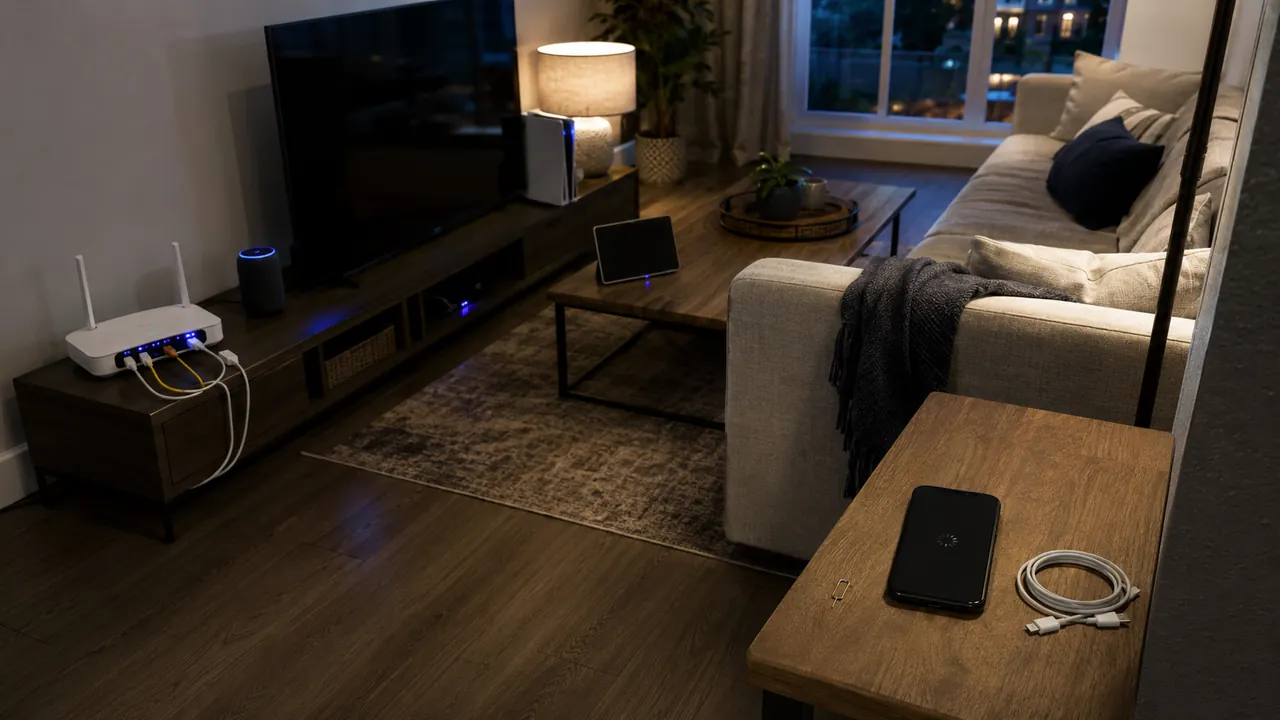
A home network feels mysterious because the boxes look alike. A small map turns “the Wi-Fi is down” into sharper questions: does the modem have service, is the router issuing addresses, and which mesh node serves the room?
A one-page map of modem, router, mesh nodes, and important devices turns outages into answerable questions. Keep the map operational rather than decorative. Record equipment roles, model numbers, cable paths, and which device belongs to the internet provider.
Walk from the provider cable inward and photograph model labels before drawing. A mesh satellite is not the modem, and a combo gateway may perform both modem and router jobs.
Name the boxes by their jobs
Write down the modem and router model numbers. Read the model labels on the modem, router, and mesh nodes. Mark which box receives the provider cable and which one creates the home network.
Put the useful details on one page
Mark which device creates Wi-Fi and which only passes internet
Draw each Ethernet cable and identify its destination. A wired television, switch, or mesh backhaul can explain why one room behaves differently.
List wired devices and mesh backhaul links
List important fixed devices such as printers, cameras, storage boxes, and work computers. Temporary phones and guest devices only clutter the map.
Record the admin address without writing the password on the map
Write the router admin address and equipment ownership, but never passwords or Wi-Fi keys. Store credentials in a password manager instead.
Add the ISP support number and account equipment ownership
Add the ISP support number and note which status lights indicate service. During an outage, the light pattern helps separate provider trouble from local Wi-Fi trouble.
Mesh systems can hide several access points behind one network name. Label each node’s room and whether it uses Ethernet or wireless backhaul; a weak backhaul can slow every device connected to that node.
Leave credentials off the drawing
- Do not publish the map or include credentials.
- Do not label every temporary guest device.
- Do not confuse a modem-router combo with two separate boxes.
Call the provider when the modem has no service signal; contact the router maker when local networking fails despite a healthy modem connection.
How the map shortens an outage
Check current menu names, limits, and recovery language against “Home Network Security” and “Are Public Wi-Fi Networks Safe? What You Need To Know” before acting; platform behavior can change after publication, and each source should be used only for the claim it actually supports.
CISA’s home-network guidance recommends securing routers and understanding the devices connected to the network.
The FTC explains that encrypted HTTPS connections protect data in transit even when using public Wi-Fi, while a lock icon does not prove the destination itself is honest.
Sources & methodology2 sources - evidence for this revision
The records below show what each source supports in this published revision.
- Home Network SecurityCISAreference - Retrieved Jul 12, 2026
What it supportsCISA’s home-network guidance recommends securing routers and understanding the devices connected to the network.
- Are Public Wi-Fi Networks Safe? What You Need To KnowFederal Trade Commissionreference - Retrieved Jul 12, 2026
What it supportsThe FTC explains that encrypted HTTPS connections protect data in transit even when using public Wi-Fi, while a lock icon does not prove the destination itself is honest.