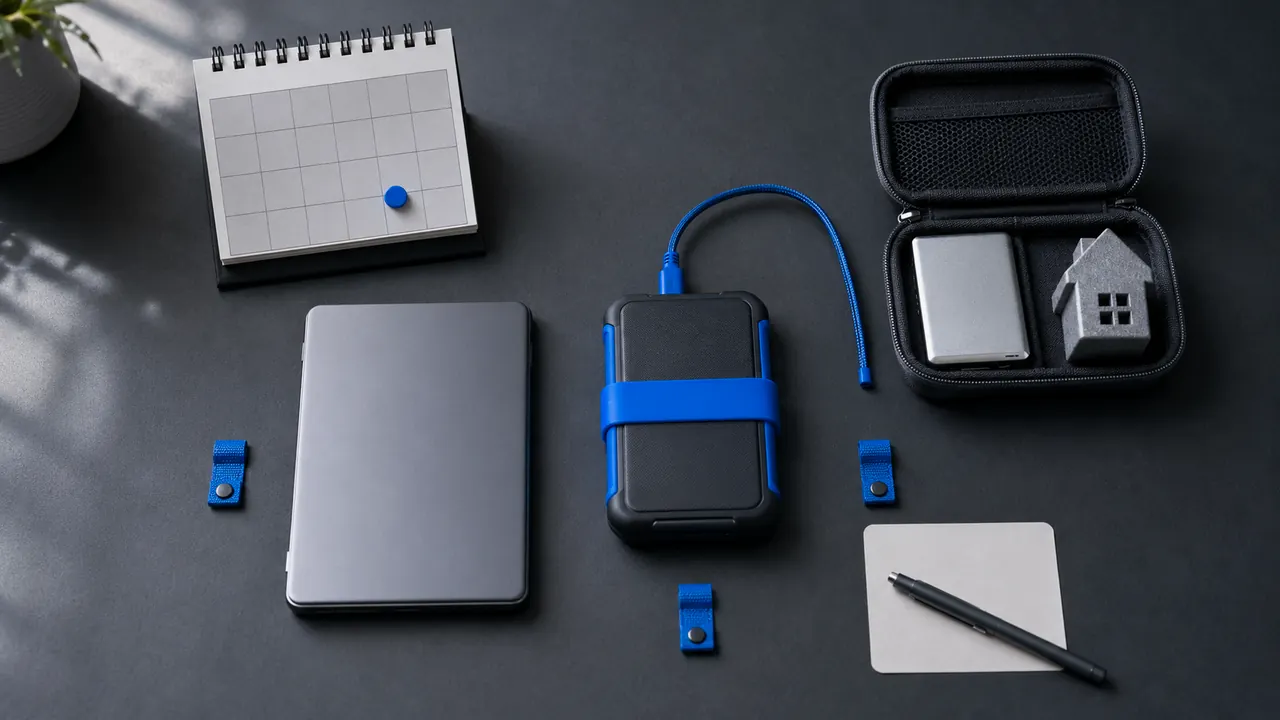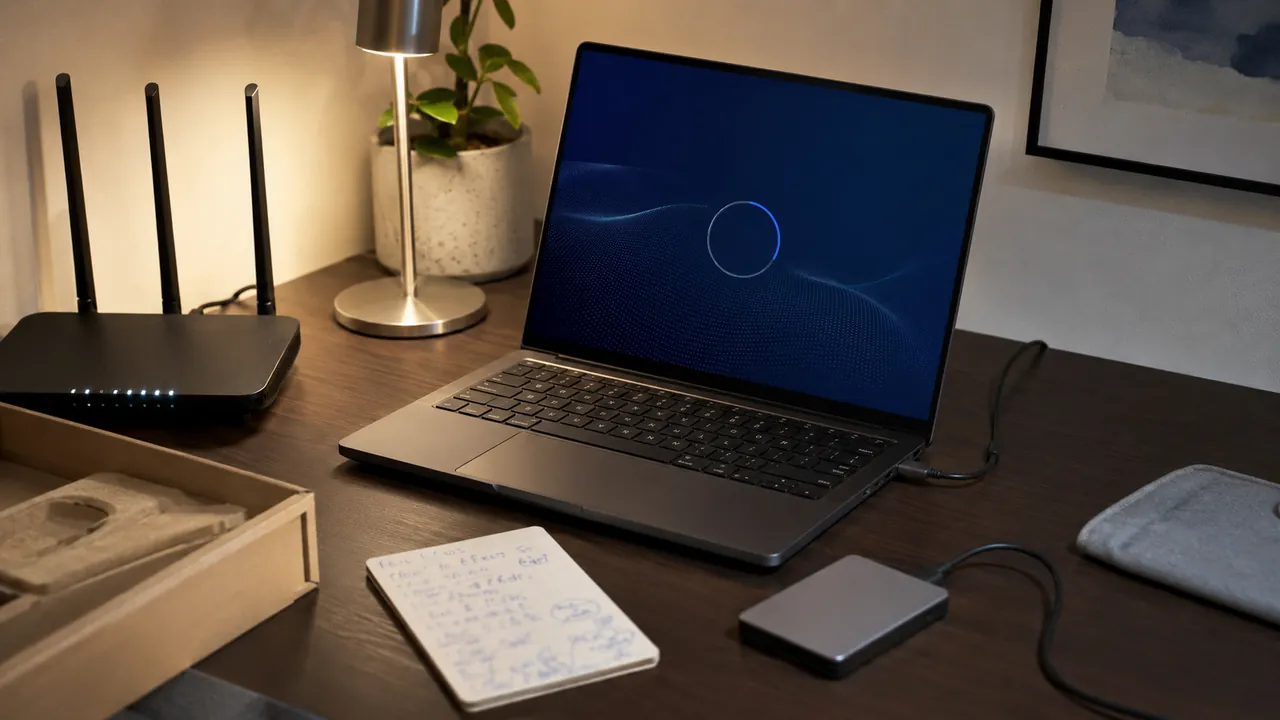
A new laptop is at its safest before the browser fills with extensions and old utilities. Use that clean hour to establish updates, encryption, recovery, and one known-good backup.
A calm first-hour checklist that gets updates, recovery, privacy, and backups right before daily use begins. Treat setup as a dependency chain: protect the operating system first, establish identity and recovery second, then move data and install optional software.
Keep the laptop plugged in, connect to a trusted network, and have account recovery details available. If it belongs to work or school, confirm which settings management controls before changing encryption or security software.
Before the downloads begin
Install operating-system updates before optional software. Run Windows Update repeatedly until no security or driver updates remain, restarting when requested. This closes known gaps before browsers, extensions, and imported files enlarge the attack surface.
A five-part first hour
Confirm disk encryption and screen lock are active
Confirm the screen locks after a short idle period, then check Device Encryption or BitLocker. Save any recovery key somewhere reachable without the laptop.
Sign in only to services you actually need
Add the primary account only after recovery email, phone, and multi-factor options are current. Skip optional vendor accounts that serve no clear purpose.
Remove trial software and review startup apps
Uninstall time-limited antivirus, shopping helpers, and vendor promotions you will not use. Review startup apps so background software does not become permanent by accident.
Create the first verified backup before moving important files
Back up one small folder, delete its local test copy, and restore it. A successful restore proves more than a backup screen that merely says “completed.”
If the laptop arrived with Windows 10, treat the operating-system decision as urgent because free Windows 10 support ended in October 2025. A work-managed device is different: stop before changing encryption, account ownership, or security software that an employer controls.
What can wait until later
- Do not import every old setting blindly.
- Do not postpone security updates for cosmetic setup.
- Do not make the new laptop your only copy of important files.
Stop if Windows Update repeatedly fails, BitLocker asks for a recovery key you do not possess, or the machine appears tied to another owner or organization.
The setup is ready when
Check current menu names, limits, and recovery language against “Windows Update: FAQ” and “Update Software” before acting; platform behavior can change after publication, and each source should be used only for the claim it actually supports.
Windows 11 automatically downloads and installs updates, and Microsoft says those updates deliver fixes and security improvements.
CISA recommends installing software updates promptly because updates often correct security weaknesses.
Sources & methodology2 sources - evidence for this revision
The records below show what each source supports in this published revision.
- Windows Update: FAQMicrosoft Supportreference - Retrieved Jul 12, 2026
What it supportsWindows 11 automatically downloads and installs updates, and Microsoft says those updates deliver fixes and security improvements.
- Update SoftwareCISAreference - Retrieved Jul 12, 2026
What it supportsCISA recommends installing software updates promptly because updates often correct security weaknesses.