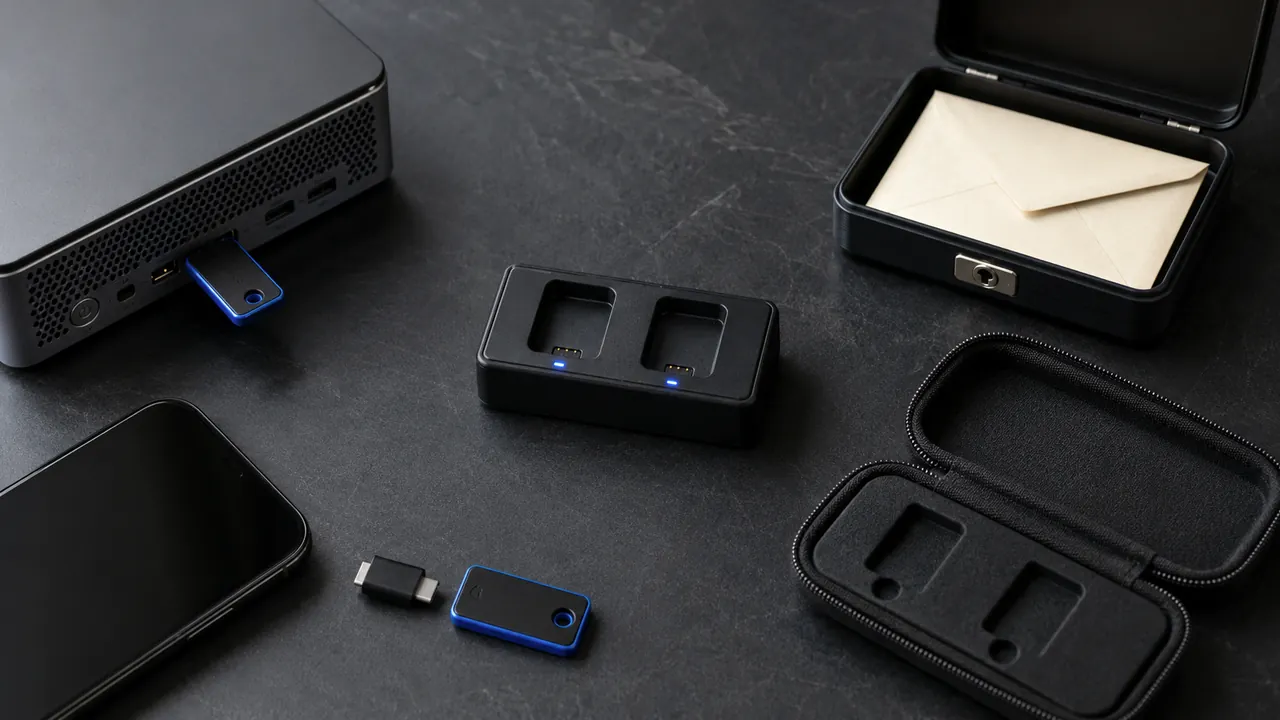
A password manager removes password reuse only if its own recovery is planned. The first session should establish a unique master password, strong second factor, and recoverable backup before importing dozens of accounts.
Start with a unique master password, recovery material, and a small migration—not a rushed import of every account. Migrate in small groups. Start with email and financial accounts, confirm autofill on each legitimate domain, and remove old saved copies only after the manager works.
Inventory where passwords currently live—browser, notes, another manager, or memory—without exporting yet. Confirm the new manager works on every device needed for recovery.
Protect the vault before filling it
Choose a reputable manager with export and recovery documentation. Compare reputation, security documentation, supported devices, export formats, and recovery design. A low price does not compensate for an unusable recovery path.
Move important accounts in small groups
Create a long unique master password you do not reuse
Create a long master password used nowhere else. Memorize it, then store recovery material separately rather than saving the master password inside its own vault.
Enable strong multi-factor authentication
Enable a security key or authenticator-based second factor and register a backup. Test both before importing accounts.
Save recovery material somewhere separate and protected
Move email, finance, and cloud accounts in small batches. After each password change, sign out and prove the new credential works on the legitimate domain.
Move high-value accounts first and remove duplicate passwords gradually
Delete plaintext CSV exports immediately after verifying the import, including copies in Downloads, cloud sync, recycle bins, and automated backups.
Autofill should match the real domain exactly. If a login appears at accounts.example.com, verify that example.com is the registered domain before saving or filling credentials; a password manager is helpful only when domain matching remains trustworthy.
Recovery belongs outside the vault
- Do not store the master password only inside the manager.
- Do not leave an unencrypted export in Downloads.
- Do not change dozens of passwords without testing recovery.
Pause the migration if an import creates duplicates, the browser extension fills credentials on the wrong domain, or you cannot prove the recovery kit works.
Clean up exports and duplicate saves
Check current menu names, limits, and recovery language against “Use Strong Passwords” and “Digital Identity Guidelines: Authentication and Authenticator Management” before acting; platform behavior can change after publication, and each source should be used only for the claim it actually supports.
CISA recommends long, random, unique passwords and identifies password managers as a practical way to create and store them.
NIST’s authentication guidance addresses password length, compromised-password screening, and secure authenticator management.
Sources & methodology2 sources - evidence for this revision
The records below show what each source supports in this published revision.
- Use Strong PasswordsCISAreference - Retrieved Jul 12, 2026
What it supportsCISA recommends long, random, unique passwords and identifies password managers as a practical way to create and store them.
- Digital Identity Guidelines: Authentication and Authenticator ManagementNISTreference - Retrieved Jul 12, 2026
What it supportsNIST’s authentication guidance addresses password length, compromised-password screening, and secure authenticator management.