The safest way to install software is to start from the developer's official site or your device's built-in app store, verify the publisher and exact web address, keep operating-system warnings enabled, and refuse any extra program you did not ask for. A familiar logo or a top search result is not proof. Scam ads and look-alike pages are designed to feel routine, which is why a short, repeatable check works better than intuition.
Find the real source
Type the developer's known address or follow a link from its verified documentation. If you begin with search, inspect the domain before downloading. A sponsored result is advertising, not a safety certificate. Watch for misspellings, added words, unusual subdomains and download portals that wrap another company's installer in their own program. On a phone, prefer Apple App Store or Google Play unless the publisher clearly documents another route. On a work or school device, use the approved catalog or ask the administrator.
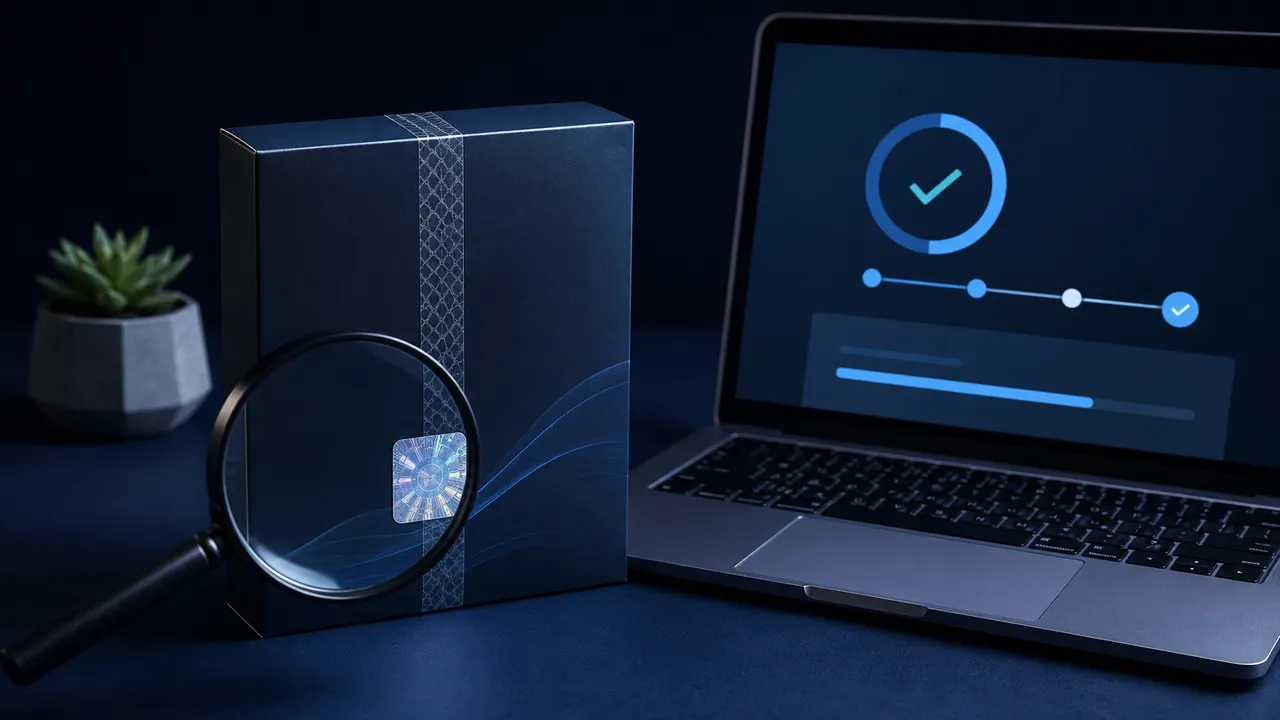
Confirm that the product name, company name, support pages and privacy information agree. HTTPS protects the connection to a domain; it does not prove the domain belongs to the company you intended to reach. If the publisher posts cryptographic hashes or signatures, compare them using the operating system's tools. A matching hash shows the file was not changed after the publisher calculated it, but only trust a hash displayed on a source you have already verified.
Read the download before running it
Check the filename, file type, version and operating system. A Windows installer commonly ends in .msi or .exe; a Mac download may be a signed .dmg or .pkg. That does not make every such file safe. Be suspicious when an ordinary document arrives as an executable, when a site asks you to disable antivirus protection, or when installation instructions tell you to bypass a security warning with an unexplained terminal command.
Leave Microsoft Defender SmartScreen, Gatekeeper and built-in malware protection on. Microsoft says SmartScreen evaluates sites and downloads for phishing, malware and file reputation. Apple says Gatekeeper checks whether software comes from an identified developer, is notarized by Apple and has not been altered. A warning is a reason to stop and investigate. It is not an obstacle a random tutorial should teach you to defeat.
Inspect the installer choices
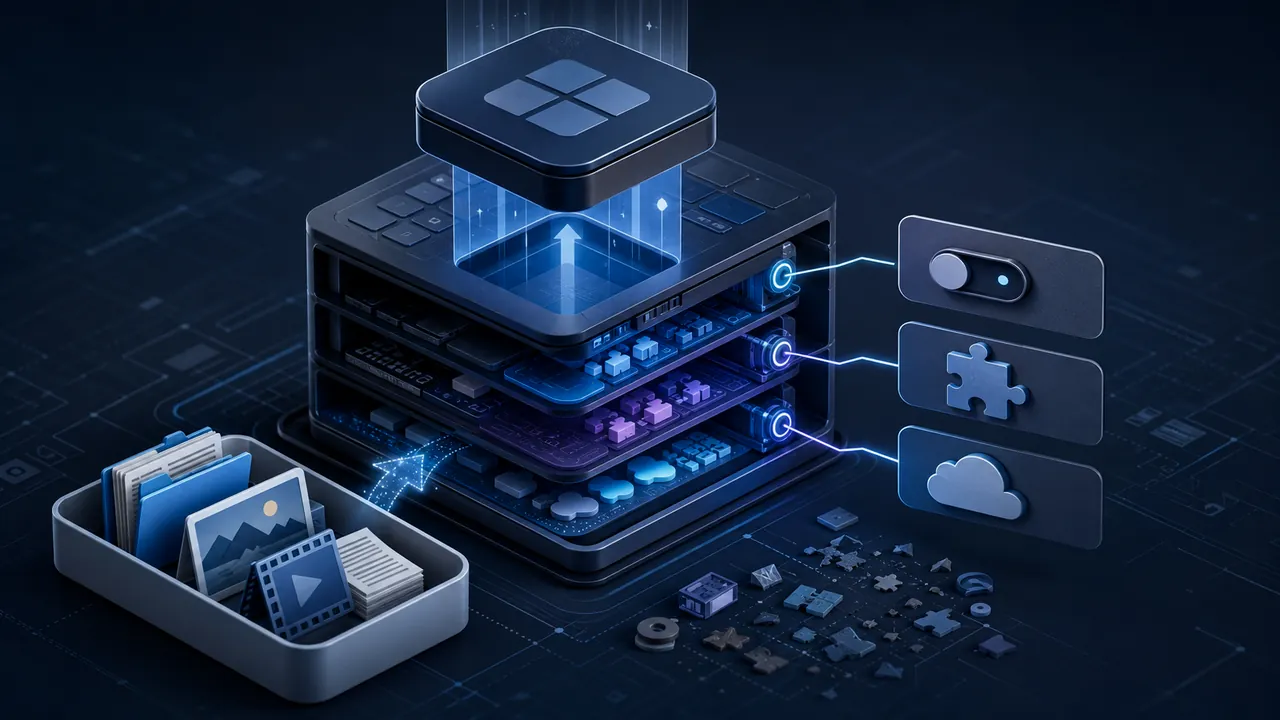
Use a custom or advanced installation view when one is offered. Read each screen instead of clicking Next automatically. Decline browser extensions, search-provider changes, trial antivirus products and unrelated utilities. Verify the destination folder and whether the program will launch at startup. A legitimate app may request administrator access to install system components, but the timing and purpose should make sense. A calculator should not need access to all documents, contacts and location just to open.
Check permissions after installation
Open the operating system's privacy or permission settings and review what the new app can reach. Grant only what supports a feature you intend to use. Camera access for a video-call app is expected; continuous location for a basic text editor is not. You can usually grant a permission later when a feature needs it. Also disable unnecessary startup behavior and automatic browser integration.
If something feels wrong
Stop the installation, disconnect from the suspicious page and delete the untrusted file. Do not enter an administrator password to see what happens. Run the built-in security scan and download a fresh copy only after locating the verified publisher. If you already installed the program and notice pop-ups, redirected searches, unexpected accounts or disabled security controls, remove it using the operating system's normal uninstall process, scan the device and change important passwords from a known-clean device if credentials may have been exposed.
A 60-second install check
- Confirm the exact publisher and domain.
- Prefer the official store or publisher download.
- Check product, version, platform and filename.
- Keep SmartScreen, Gatekeeper and malware protection enabled.
- Reject bundled extras and unexplained privileges.
- Review permissions and startup behavior afterward.
This process does not guarantee that software has no defects. It removes the most avoidable risks: downloading the wrong program, trusting a fake source, ignoring a meaningful warning and granting more access than the program needs.
Sources & methodology3 sources - evidence for this revision
The records below show what each source supports in this published revision.
- Microsoft Defender SmartScreen overviewMicrosoft Learnreference - Retrieved Jul 12, 2026
What it supportsMicrosoft Defender SmartScreen evaluates sites and downloads for phishing, malware and file reputation. - Official stores and verified publisher sites reduce exposure to impostor download pages and unwanted software.
- Safely open apps on your MacApple Supportreference - Retrieved Jul 12, 2026
What it supportsApple Gatekeeper checks developer identity, notarization and whether downloaded software was altered. - Official stores and verified publisher sites reduce exposure to impostor download pages and unwanted software.
- How to recognize, remove, and avoid malwareFederal Trade Commissionreference - Retrieved Jul 12, 2026
What it supportsOfficial stores and verified publisher sites reduce exposure to impostor download pages and unwanted software.