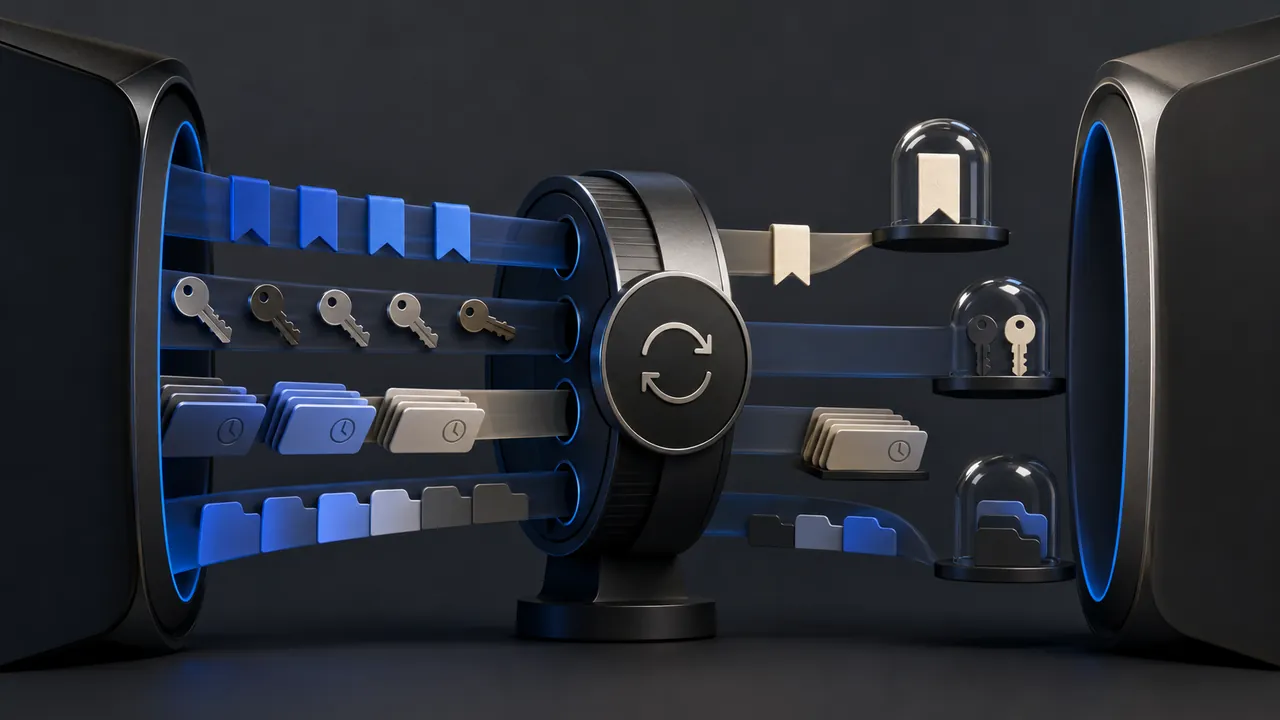
Use separate browser profiles when two parts of your life should keep different accounts, histories, extensions and sync settings. Use a private window for a short-lived session on the same device. The two tools solve different problems.
What a profile separates
Chrome profiles can maintain distinct bookmarks, history, passwords and settings. Each profile can sign in to a different Google Account or remain local. Other browsers expose comparable profile or container systems. The result is a durable browser identity: opening the work profile tomorrow returns to its work accounts rather than mixing them with personal sessions.
This reduces accidental actions. A calendar link is less likely to open under the wrong account. A work-only extension does not need to watch personal browsing. Search suggestions and history remain more relevant to the context. A visual name and color make the boundary easy to recognize.
What it does not secure
Profiles are not separate operating-system users. Someone who can use your unlocked computer may be able to open another browser profile. Malware running with your account can potentially access browser data. An employer-managed browser may apply policy across profiles. For strong separation on a shared or managed machine, use separate operating-system accounts and device protections.
- A profile is an organization and account-boundary tool.
- A private window limits local history and cookie persistence after the session.
- An operating-system user adds stronger file and access separation.
- A separate device may be appropriate for high-risk administrative work.
A useful three-profile setup
Personal
Keep personal email, shopping and entertainment here. Install only extensions you genuinely use. If you sync, understand which account receives bookmarks, history and passwords.
Work or school
Use the managed account and required extensions. Give the profile an unmistakable color. Do not sign the personal profile into the organization just for convenience if policy or data boundaries matter.
Testing or low-trust
A local, unsynced profile can be useful for testing a new service or extension. It is not a malware sandbox, but it reduces account confusion and persistent cross-contamination. Remove it when the test is done.
Extension permissions matter
Profiles let you narrow extension exposure. An extension that needs broad access for a work tool does not automatically need the same access in your personal profile. Review each profile's extension list independently. A duplicated profile with every extension installed defeats much of the benefit.
Set it up without creating chaos
- Create profiles for real boundaries, not every website.
- Choose distinct names, colors and desktop shortcuts.
- Sign in only to the accounts that belong in that profile.
- Install the minimum extension set per profile.
- Test which profile opens external links and pin the intended shortcut.
- Lock the computer whenever you step away.
Private browsing is valuable when you want a temporary session that does not remain in ordinary history. It is awkward as a permanent identity system because sessions disappear and it still shares the same device context. Profiles are the calmer answer for recurring boundaries: fewer wrong-account mistakes, less extension exposure and a browser that reflects the task in front of you.
Sources & methodology2 sources - evidence for this revision
The records below show what each source supports in this published revision.
- Use Chrome with multiple profilesGoogle Chrome Helpreference - Retrieved Jul 12, 2026
What it supportsChrome profiles keep bookmarks, history, passwords and settings separate.
- Private Browsing - Use Firefox without saving historyMozilla Supportreference - Retrieved Jul 12, 2026
What it supportsPrivate browsing does not make a user anonymous and primarily limits what the browser retains locally.